> For the complete documentation index, see [llms.txt](https://docs.colormass.com/llms.txt). Markdown versions of documentation pages are available by appending `.md` to page URLs; this page is available as [Markdown](https://docs.colormass.com/building-blocks/materials/material-explorer.md).
# Material Explorer
The *Material Explorer* is a tool that you can use to explore how your graphics (regular images) would look on furniture pieces, without having to manufacture the fabric or patter.
To use the *Material Explorer*, first navigate to the *Materials* tab:
{% hint style="info" %}
In case you don't see this button that means your account doesn't have this feature turned on, please contact colormass staff to enable this feature.
{% endhint %}
Once you click on the button it will bring up a dialog window that should look something like this:
Material Explorer dialog
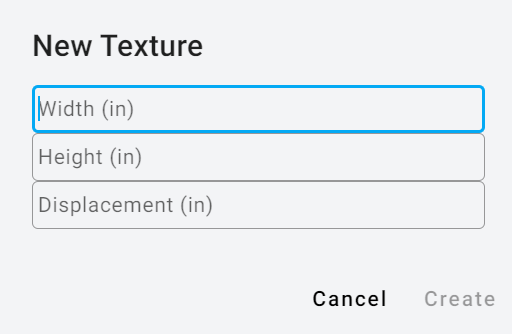
Click on folder icon in the bottom right corner and select your image. Next you will be asked to enter the dimensions of the uploaded image:
Dimensions
These are basically the physical size of the picture you just uploaded, these are important to make sure that the graphic is applied to the furniture pieces in the right size (if you get it wrong don't worry, you can change this later as well).
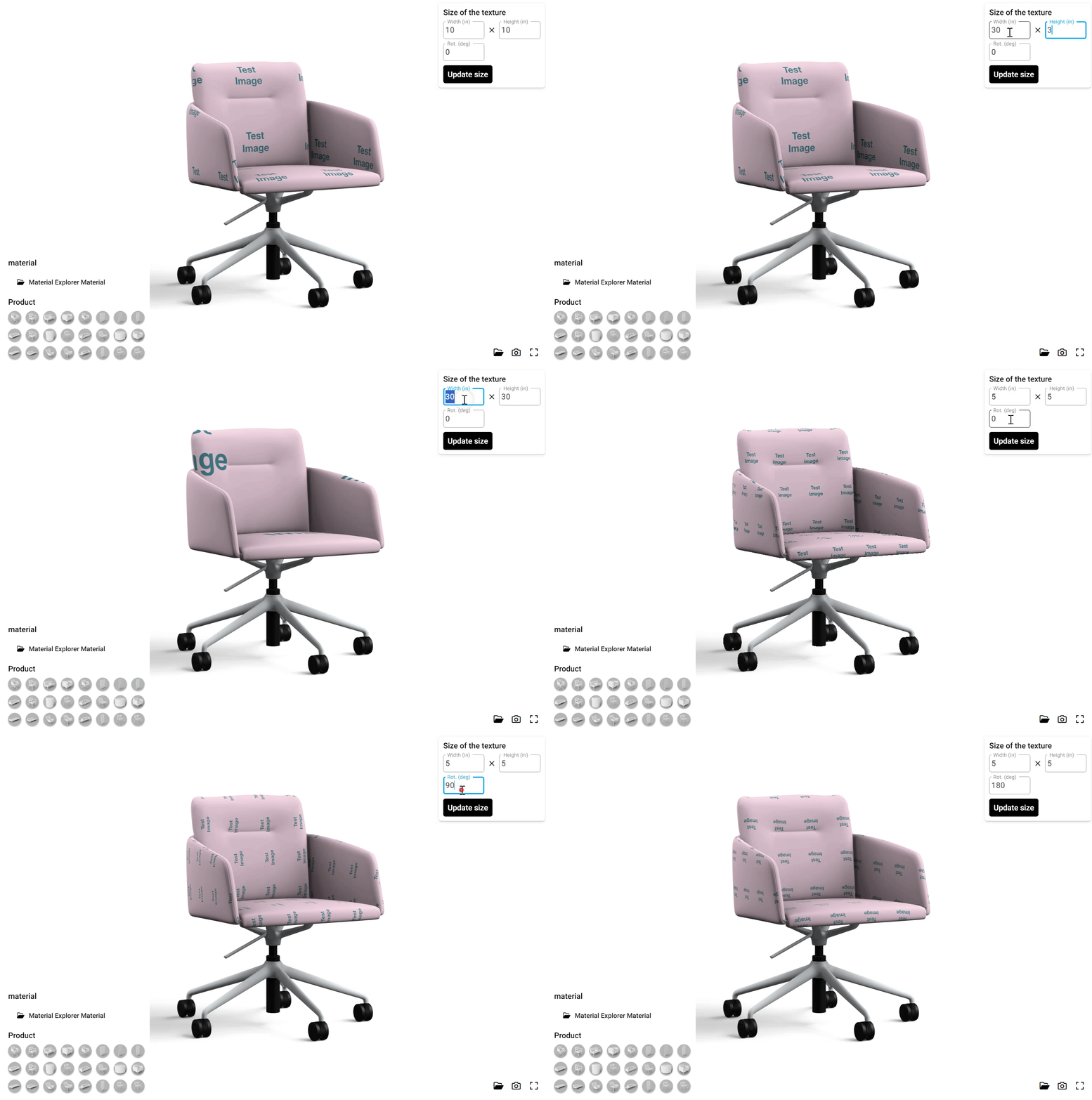
Once your image is uploaded you can start adjusting the size and the rotation of the material, just like in this screenrecording below:
Changing width and height of the pattern
Furthermore in the bottom left corner you will be able to select furniture pieces to try for your pattern.
{% hint style="info" %}
Please ignore the *Material Explorer Material* button on the left (just above the furniture selection). That button is meant for a specific use case that most probably will not be used in your account. If you are unsure please ask your contact person at colormass.
{% endhint %}
.png?alt=media&token=b3e7204d-dd51-4599-9beb-c0b5d1b315ec)
.png?alt=media&token=efe7489d-550a-44fb-8282-2a128fbbbcf5)