> For the complete documentation index, see [llms.txt](https://docs.colormass.com/llms.txt). Markdown versions of documentation pages are available by appending `.md` to page URLs; this page is available as [Markdown](https://docs.colormass.com/building-blocks/products/advanced/lod-management.md).
# LOD Management
In general the colormass system handles dynamic compression (on the server side) and decompression (on the client side) so that you don't have to absolutely minimize your 3D assets. But in some cases it is good to have an extra tool to manually adjust LOD details and decide what to show where. The colormass platform offers three distinct usecases:
* **Web**: displaying the asset in a configurator
* **AR**: displaying the asset in app-less AR way
* **Path-traced**: using assets in path-traced image rendering
In practice it is usually the best to define two: **Web** and **Path-traced**. To set these first add a group to your product:
Add groups
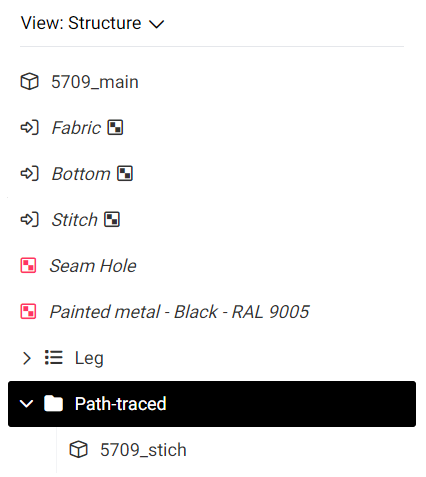
and name then based on what use case will be inside that folder. Move the elements that you would only like to display for that use case under this folder, like so:
Group with stitching inside
Once all this is done we only have to do one more step, click on the *Other* button and select *LOD Type*:
LOD Type
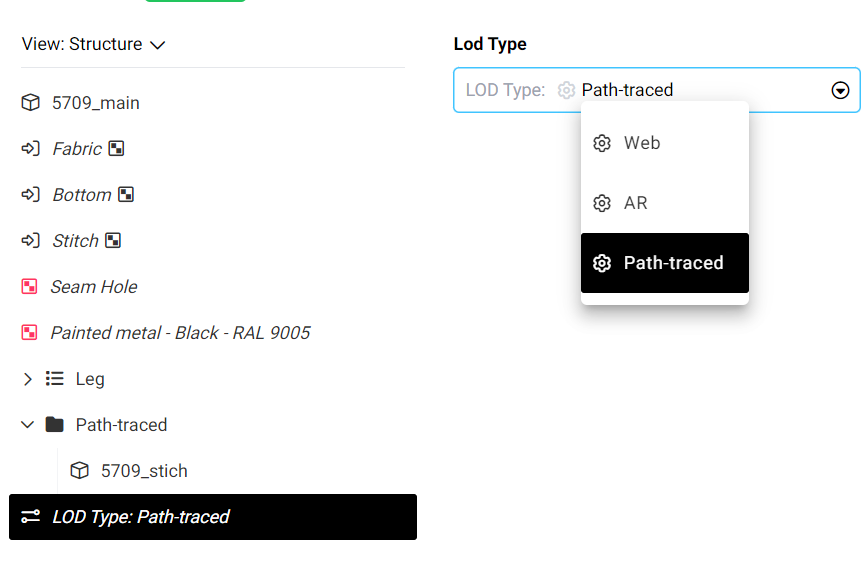
Then select the use case that you would like to set for your folder:
Type selection
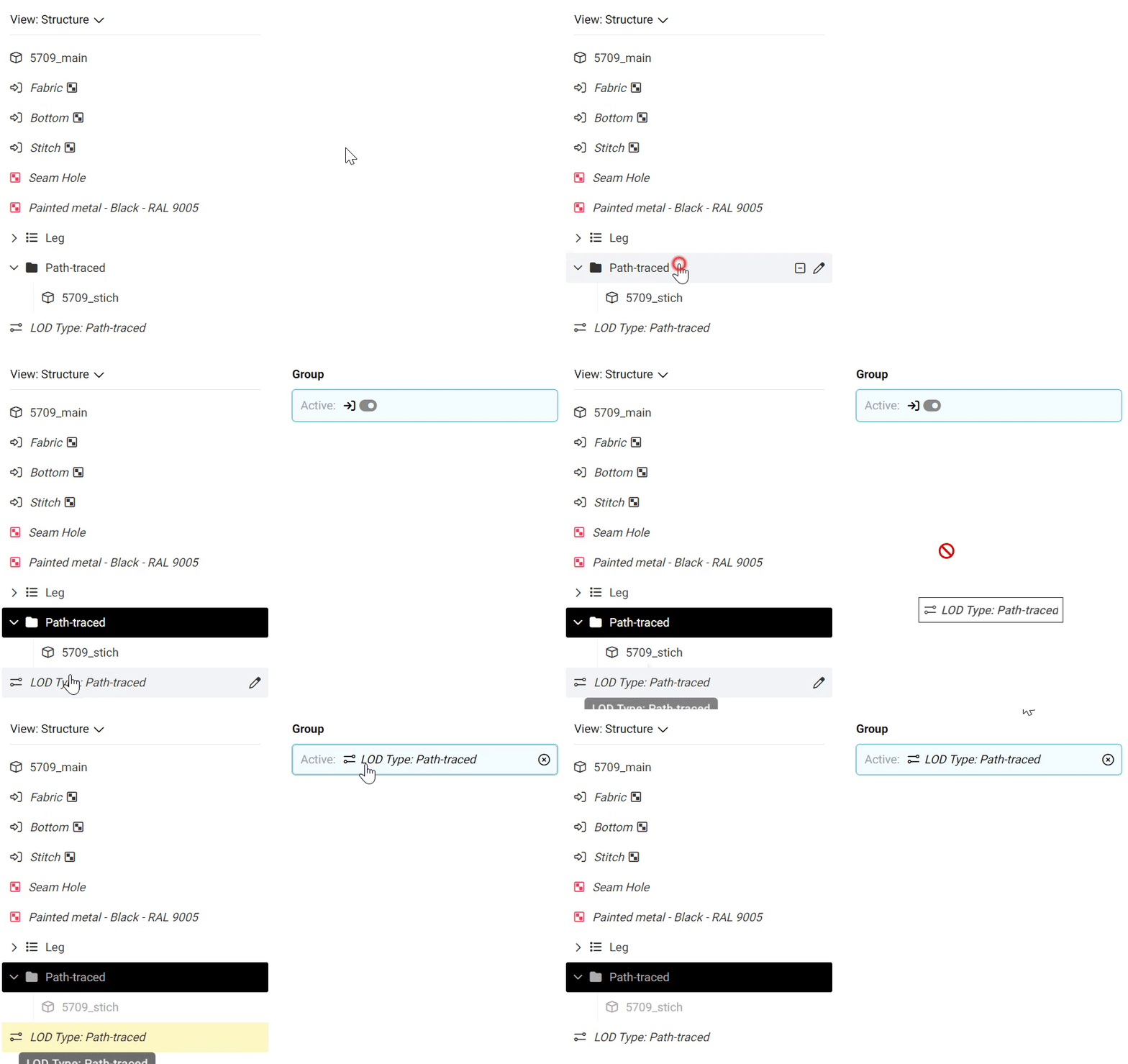
and assign it the *Active* field of your folder:
Assign LOD Type
this will make the folder active (visible) during image rendering and inactive (hidden) for any other use case (web, AR).
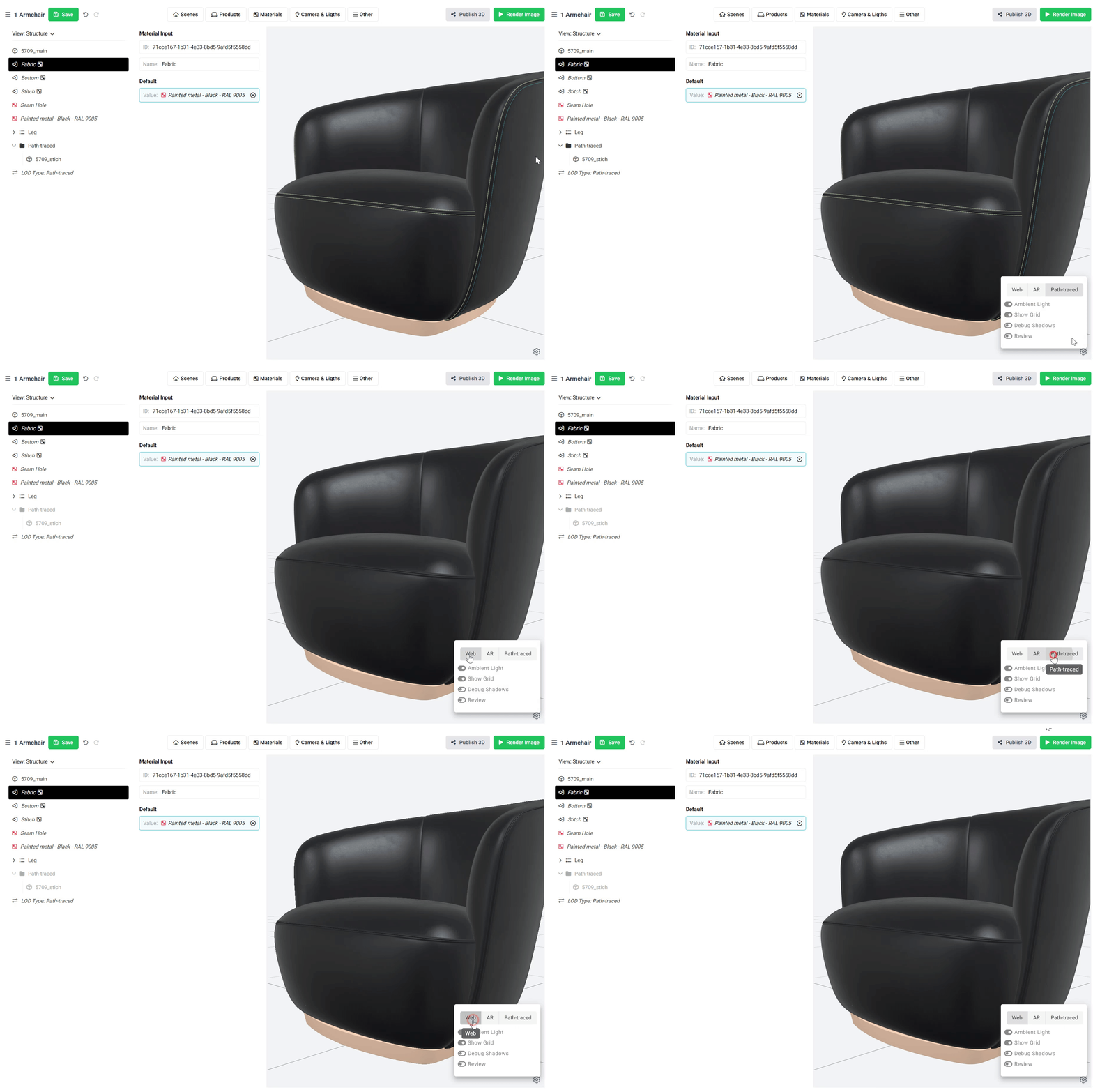
You can confirm if this is the case if you click on the bottom right corner (in the viewer settings) and switch between the toggle buttons at the very top. You will see that the items which were moved under a folder called *Path-traced* is only shown during *Path-traced* use case:
.png?alt=media&token=5702d867-996d-4868-a974-a489bc0a19de)
.png?alt=media&token=ba73b55d-3c5d-4f90-b151-674d6ef1e1cf)