> For the complete documentation index, see [llms.txt](https://docs.colormass.com/llms.txt). Markdown versions of documentation pages are available by appending `.md` to page URLs; this page is available as [Markdown](https://docs.colormass.com/building-blocks/products/create-material-variants.md).
# Create Material Variants
## Simple Material Variants
To better demonstrate how to add material variations to your product, we'll walk through the process of adding two fabrics to our seating pad.
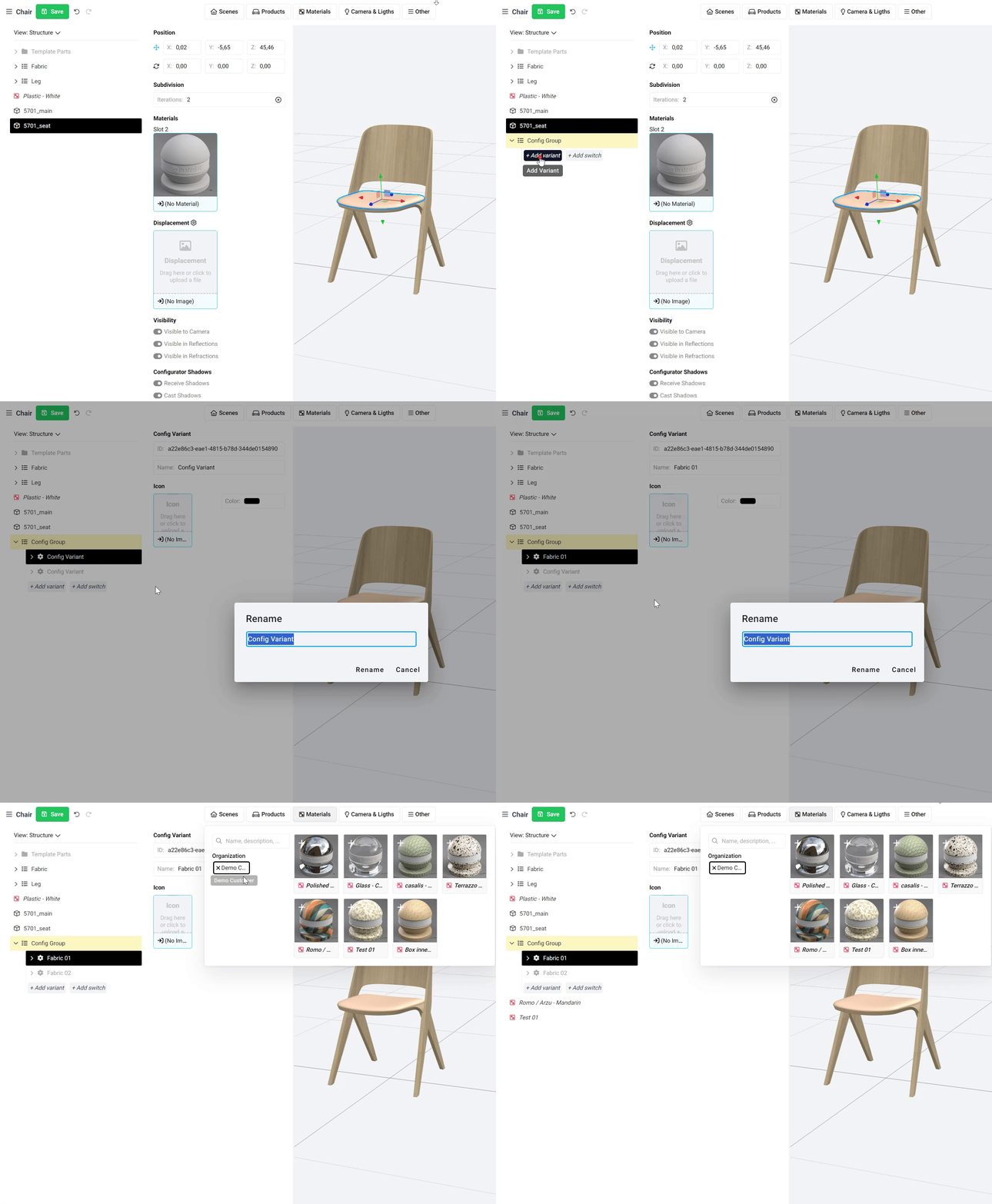
The first step is to add a new *Config Group* with two options to our product (if you're unsure how to do this, refer to the first step in the [Create Variants](/building-blocks/products/create-variants.md) page) and then add your two fabrics as well. The first steps would look something like this (assuming you would only want to add two fabric options):
Add the Config Group and the two materials
Once these initial steps are done you, you'll need to do three additional steps:
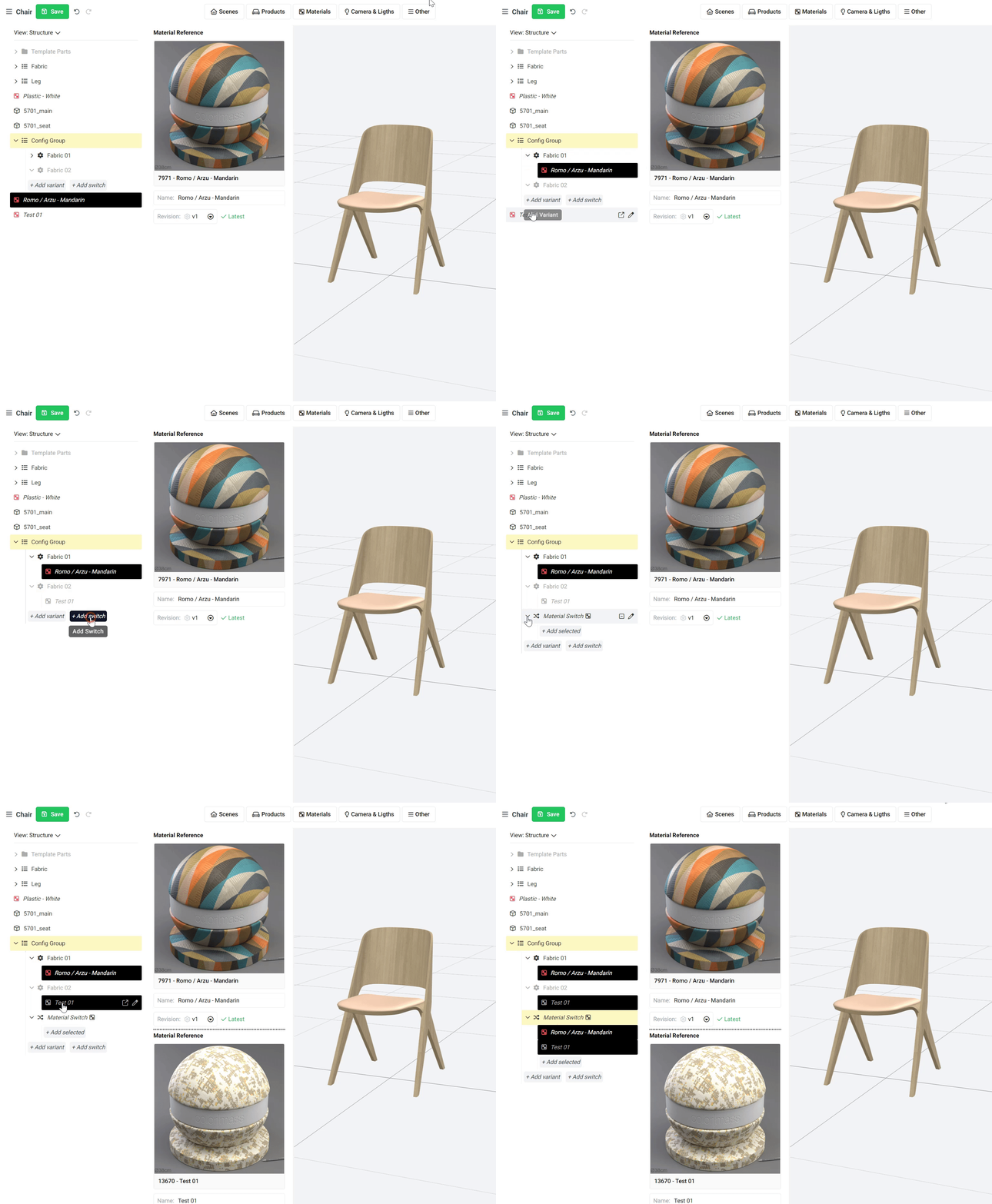
* Move the right materials to the corresponding *Config Variant*
* Create a *Material Switch* (this will be the item that will act as a combined material)
* Select the materials under your *Config Variants* and add them to the switch
You can see these same steps below in the screenrecording.
Creating a Material Switch
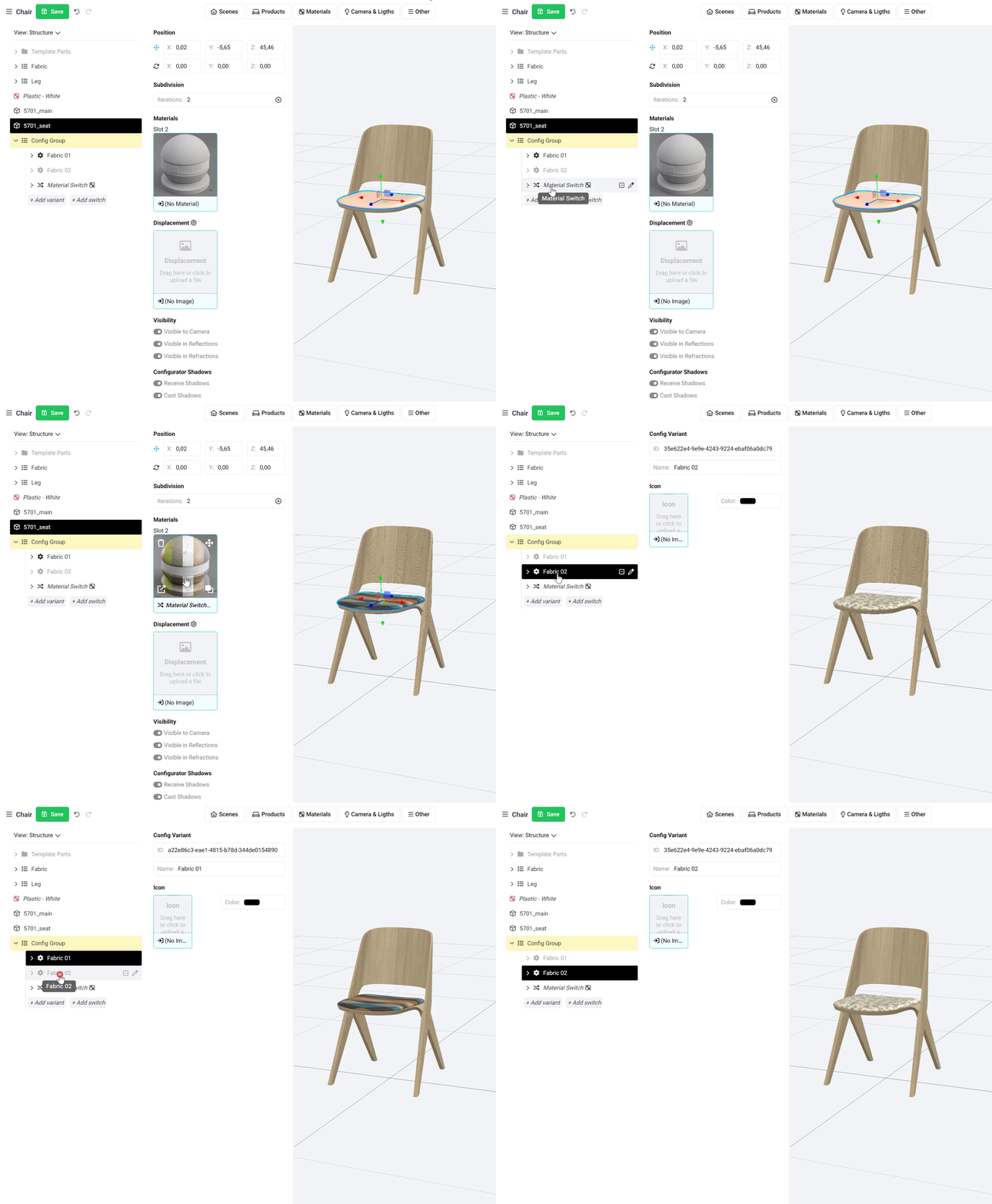
Now you can use the *Material Switch* that you created in the step above as a regular material and assign it to whichever mesh you would like.
Assign the Material Switch to a mesh
You can create as many separate Material Variants as you want. You can create a group of options for the leg (finish options) and for seating pad (fabric options) but you can of course create even more depending on your real life product. These
## Advanced Material Variants
In some cases it is necessary to change the finish *in the same time* as you would change the fabric, meaning that a specific fabric option comes with a specific leg finish (and they are not independent options).
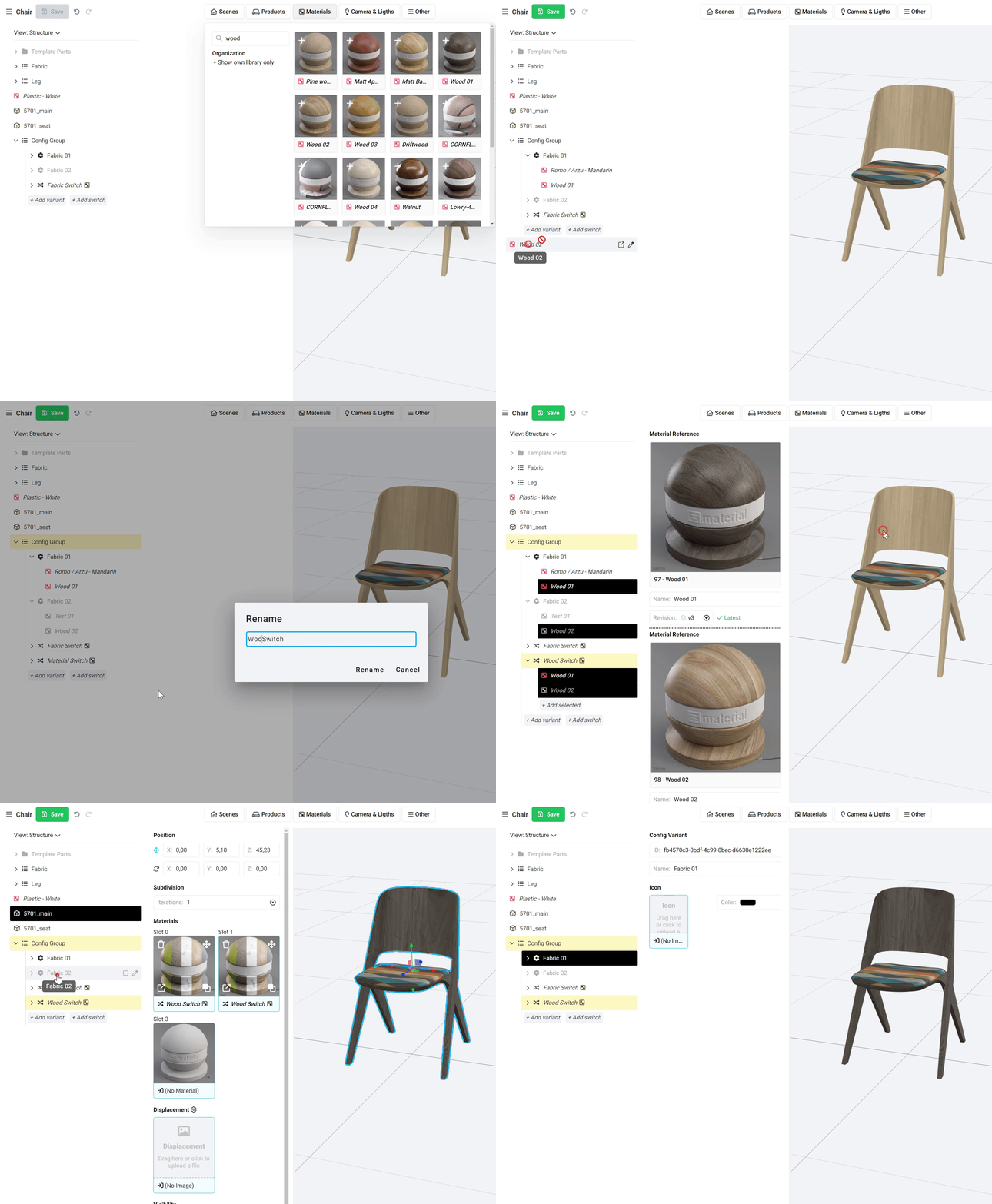
To illustrate this, let's assume that the two fabric options we created initially each have a corresponding wood finish. *Fabric 01* should always be paired with *Wood 01*, and *Fabric 02* should always be paired with *Wood 02* finish. To do this, we need to:
* Add the two wood options
* Move them under the original variants
* Create a new *Material Switch*
* Add the selected wood finishes under the new *Material Switch*
Adding a new Material Switch
At the end of the video you can see that the fabric and the finish changes in the same time and what is displayed when an option is selected is determined by what is listed under that option.