> For the complete documentation index, see [llms.txt](https://docs.colormass.com/llms.txt). Markdown versions of documentation pages are available by appending `.md` to page URLs; this page is available as [Markdown](https://docs.colormass.com/configurator/create-your-first-configurator/publish-the-configurator.md).
# Publish the Configurator
Once you saved your scene you can easily publish your scene using the *Publish 3D* button:
Publish
in the top right corner and click on *Copy configurator URL*.
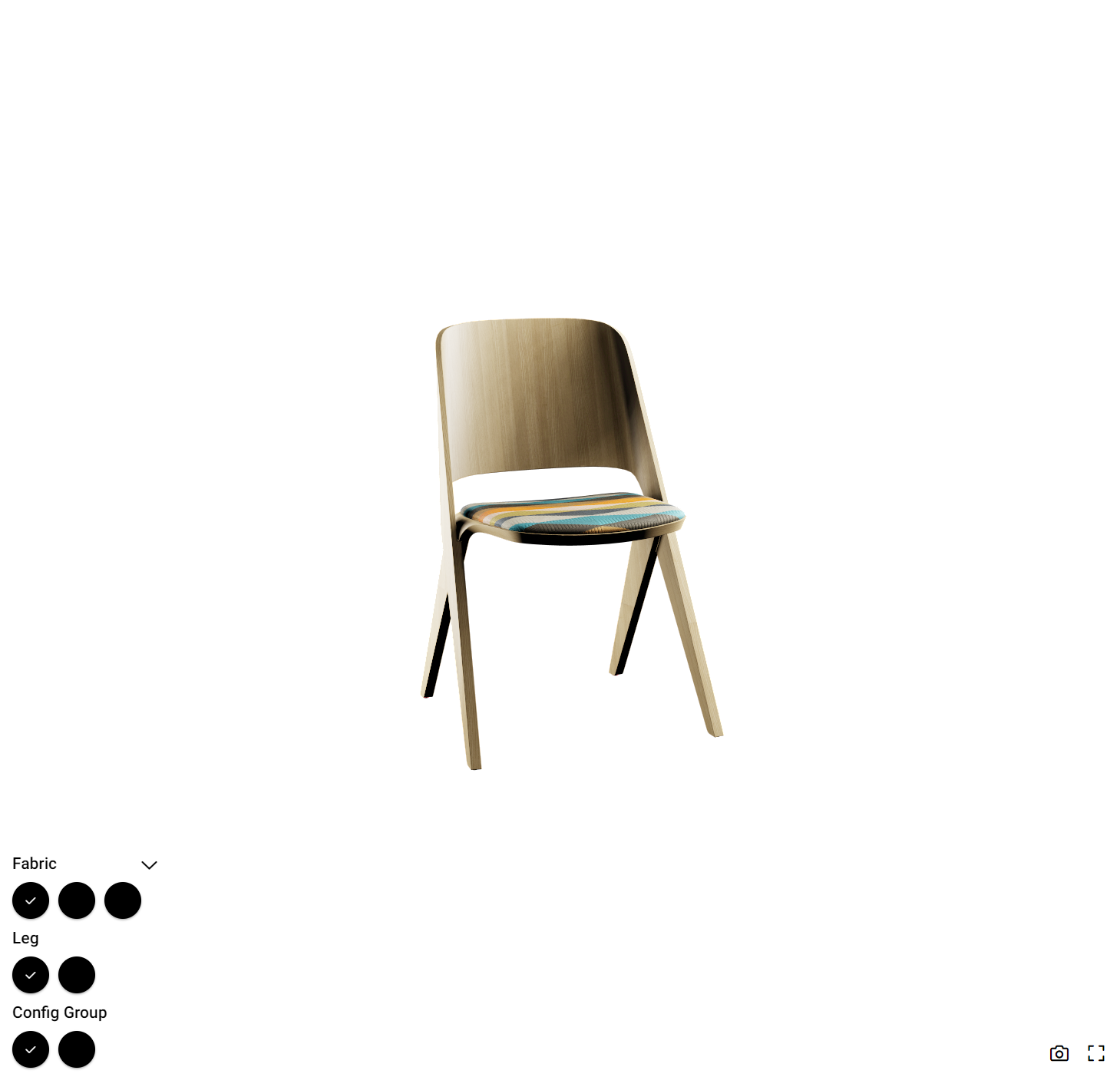
If you’ve followed these steps correctly, opening the link should display a 3D viewer similar to the one shown below, which can easily be embedded into your website.
First configurator
You’ll notice that several elements are missing (e.g., the options don’t have icons uploaded yet), but we’ll cover these details in separate tutorials.