> For the complete documentation index, see [llms.txt](https://docs.colormass.com/llms.txt). Markdown versions of documentation pages are available by appending `.md` to page URLs; this page is available as [Markdown](https://docs.colormass.com/rendering-platform/render-your-first-image/add-a-scene.md).
# Add a Scene
In order to create a new image first we need to add scene that can serve as a starting point. Therefore got to the *Scenes* button of the top bar and select a scene:
Select a scene
{% hint style="info" %}
If no scene exists in your library, please ask your colormass contact person to add one to your library.
{% endhint %}
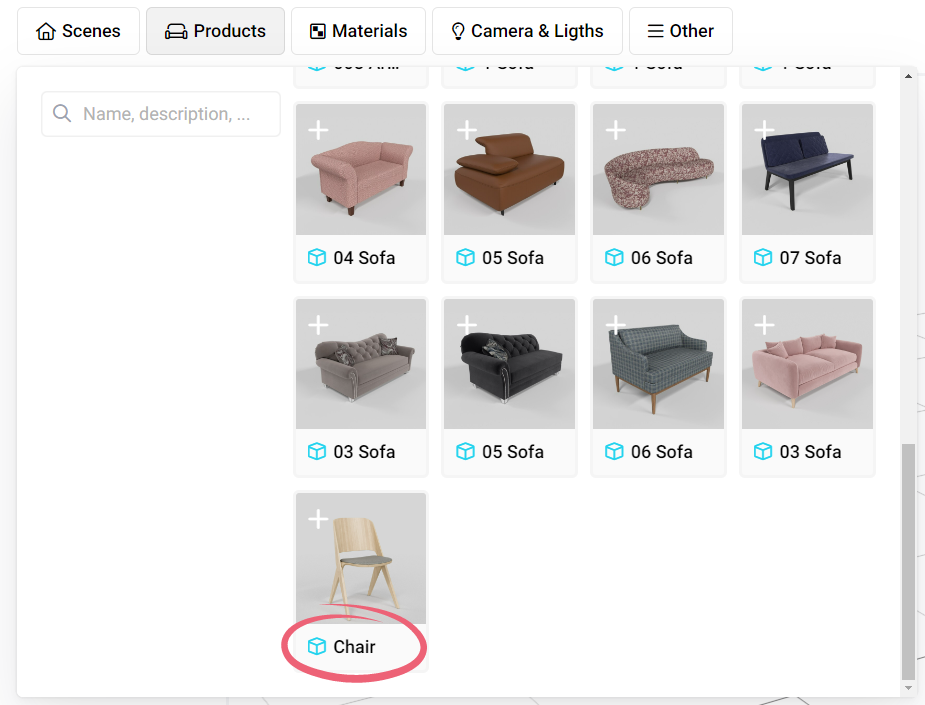
Depending on how the scene was prepared it might already include a product but in case it doesn't then don't hesitate to go to the *Products* button and select any of your products:
.png?alt=media&token=8e799163-f384-4de8-9958-092e8fd5594e)