> For the complete documentation index, see [llms.txt](https://docs.colormass.com/llms.txt). Markdown versions of documentation pages are available by appending `.md` to page URLs; this page is available as [Markdown](https://docs.colormass.com/scanning-and-tiling/texture-editor/operators/gradient-removal.md).
# Gradient Removal
This is an operator in the [Texture Editor](/scanning-and-tiling/texture-editor.md). It is assumed that you are familiar with the basics of the Texture Editor before using this operator.
Gradients are common in textures, often resulting from uneven lighting or imperfections in real-world materials, where seams show noticeable color differences. This operator is a powerful tool for reducing those gradients.
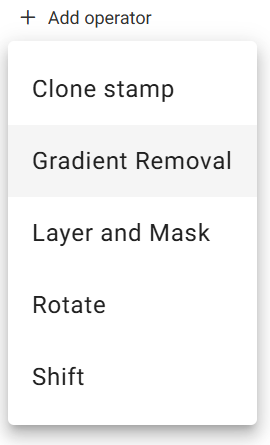
In order to add the operator click on *+ Add operator* and then select *Gradient Removal*:
{% hint style="info" %}
If the *+Add operator* text is not visible, it means you need to add a *Tiling* operator first before you can add any other operators.
{% endhint %}
Before
After
Gradients removed
Additionally, it can be used to smooth out folds. For example, in the image above, a textile wasn't perfectly aligned on the table during digitization, causing bumps that may appear undesirable in renders. This operator helps to smooth out those imperfections.
{% hint style="danger" %}
Be cautious when using the gradient removal operator, as it’s easy to overdo it and end up removing too many details from the texture. The goal is not to make everything look overly perfect or homogeneous, as filtering out small details and imperfections can result in a less realistic appearance. The example below illustrates how excessive use of the operator can eliminate crucial details of the fabric, compromising its authenticity.
{% endhint %}
Overdone gradient correction leading to loss in detail
Overall, normal maps are generally the least sensitive to gradient correction, while diffuse maps are more sensitive, particularly if they contain larger patterns rather than solid colors. Be sure to click through the different maps and check the effect of the gradient removal by toggling the operator on and off using the eye icon. It is common practice to apply multiple gradient removal operators with different settings to different sets of maps. This allows for more targeted adjustments, ensuring the best results for each type of map.