> For the complete documentation index, see [llms.txt](https://docs.colormass.com/llms.txt). Markdown versions of documentation pages are available by appending `.md` to page URLs; this page is available as [Markdown](https://docs.colormass.com/~/revisions/hhUottwyr9yqdItbQEIh/3d-content-management/materials/upload-image-as-a-material.md).
# Upload Image as a Material
This page describes how to create a material from a single image.
{% hint style="warning" %}
The material definitions that are created from a single image do not contain reflection properties. In order to achieve the highest quality possible please consider uploading a [PBR material](/~/revisions/hhUottwyr9yqdItbQEIh/3d-content-management/materials/upload-pbr-materials-vizoo-axf.md) or [Scan](/~/revisions/hhUottwyr9yqdItbQEIh/scanning-and-tiling/scanning.md) your materials directly.
{% endhint %}
## Upload Image
Once you have added a new material (refer to [Add a Material](/~/revisions/hhUottwyr9yqdItbQEIh/3d-content-management/materials/add-a-material.md)), you should see a new dialog window.
Go to the *Texture sets* area and press *+Add a texture group*
Texture sets
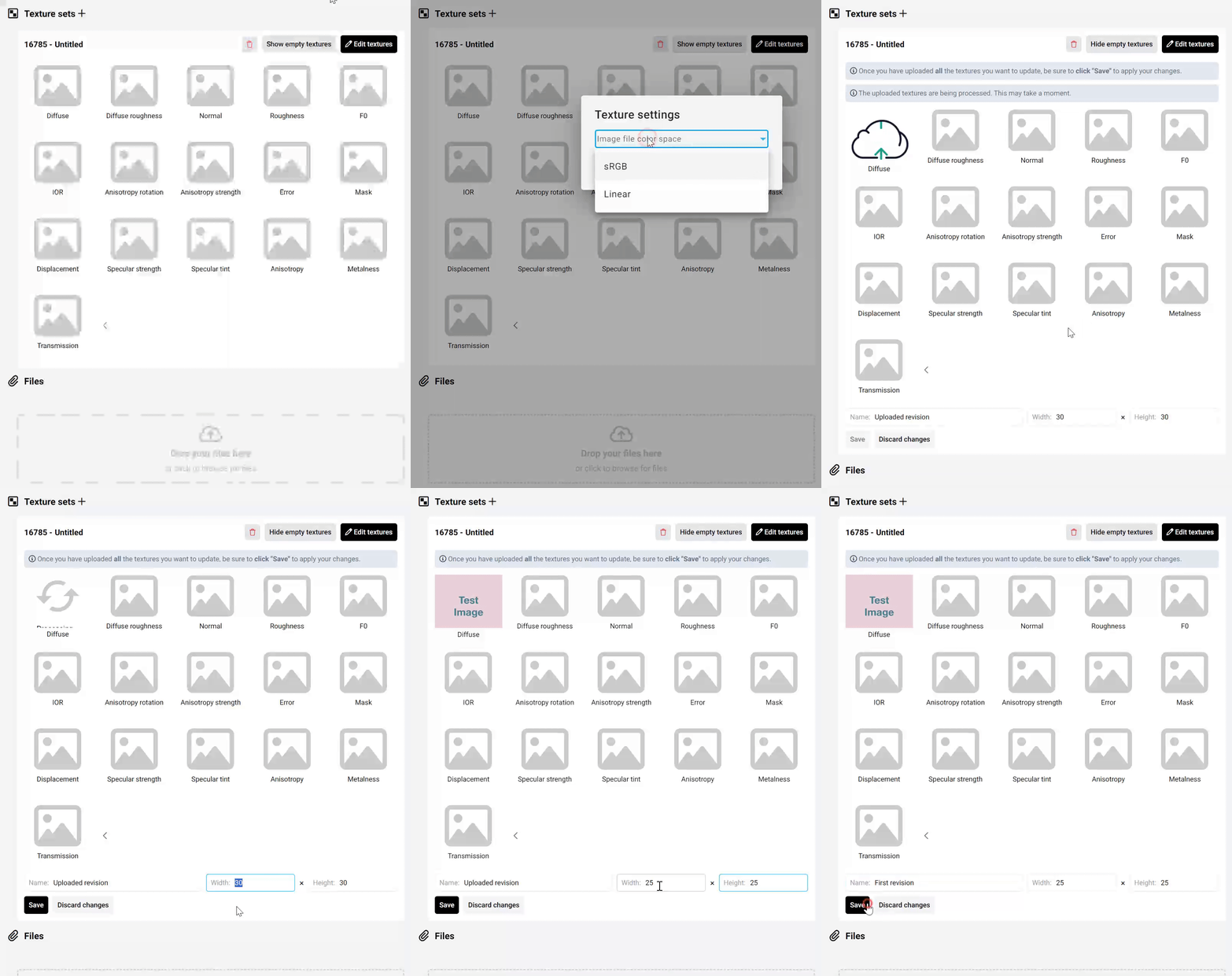
Once you pressed the *+Add a texture group* you will see an array of map placeholders where you could potentially upload maps but this time we will only upload a single image to *Diffuse.*
Drag and drop your image into the *Diffuse* slot and after the image is uploaded:
* Set the width and height of the image (in cm)
* Press *Save*
Upload diffuse texture
## Generate Material
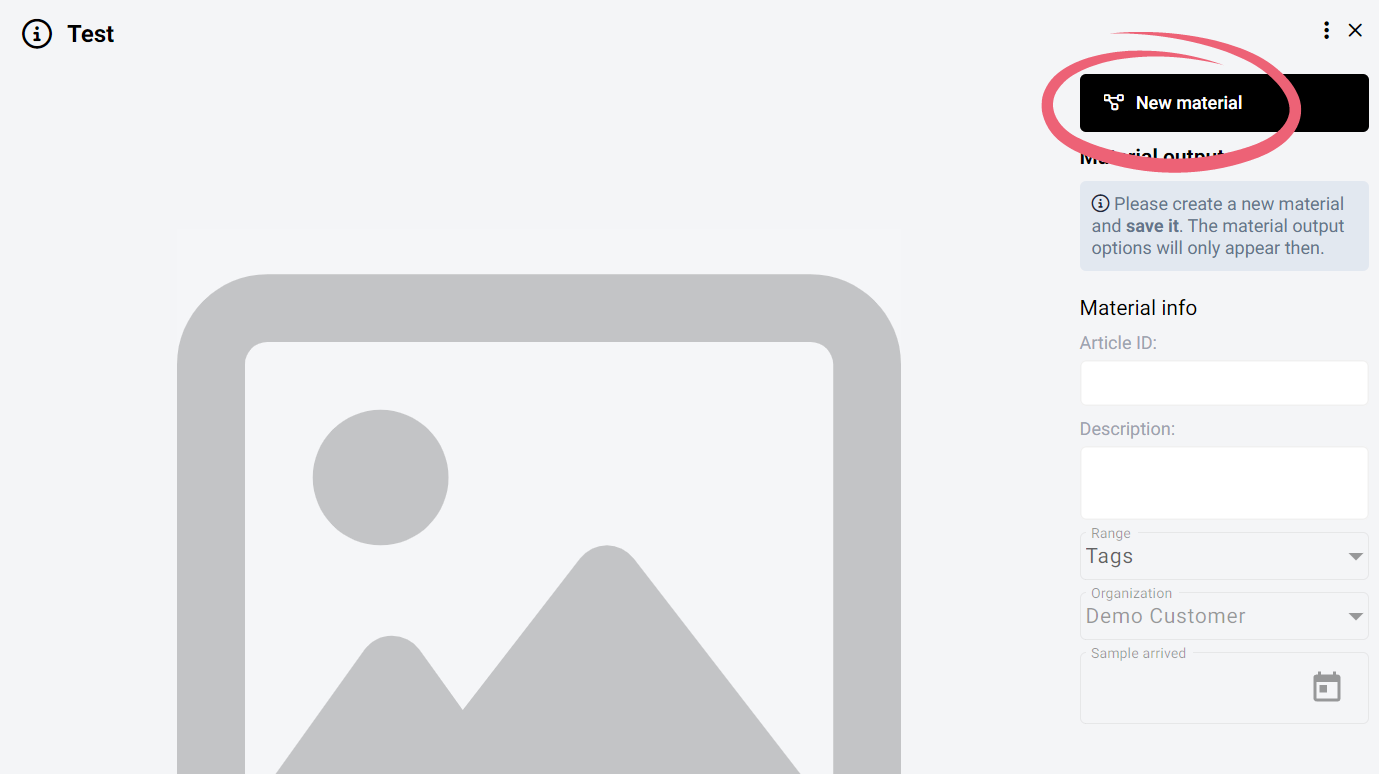
Now that the texture is uploaded press the *New Material* button in the top right corner:
Generate material
This will open up the material editor, where you will only need to press *Save* in the bottom left corner.
.png?alt=media&token=0772bc16-3449-43e5-b012-b3ca2b1a59a4)
.png?alt=media&token=b72853c6-9fcf-4b98-9d39-d31bffc5835c)