> For the complete documentation index, see [llms.txt](https://docs.colormass.com/llms.txt). Markdown versions of documentation pages are available by appending `.md` to page URLs; this page is available as [Markdown](https://docs.colormass.com/building-blocks/materials/rotate-material.md).
# Rotate Material
{% hint style="warning" %}
Before rotating a material, make sure you understand whether the issue is limited to a **single material** with incorrect orientation or if **all materials** appear incorrectly on the mesh. If it’s the latter, you should adjust the [Pattern Placement](/building-blocks/products/pattern-placement.md) not the material itself.
The easiest way to determine this is to open the texture editor (see below) and check whether the orientation shown there is the same as you would expect the orientation to be.
{% endhint %}
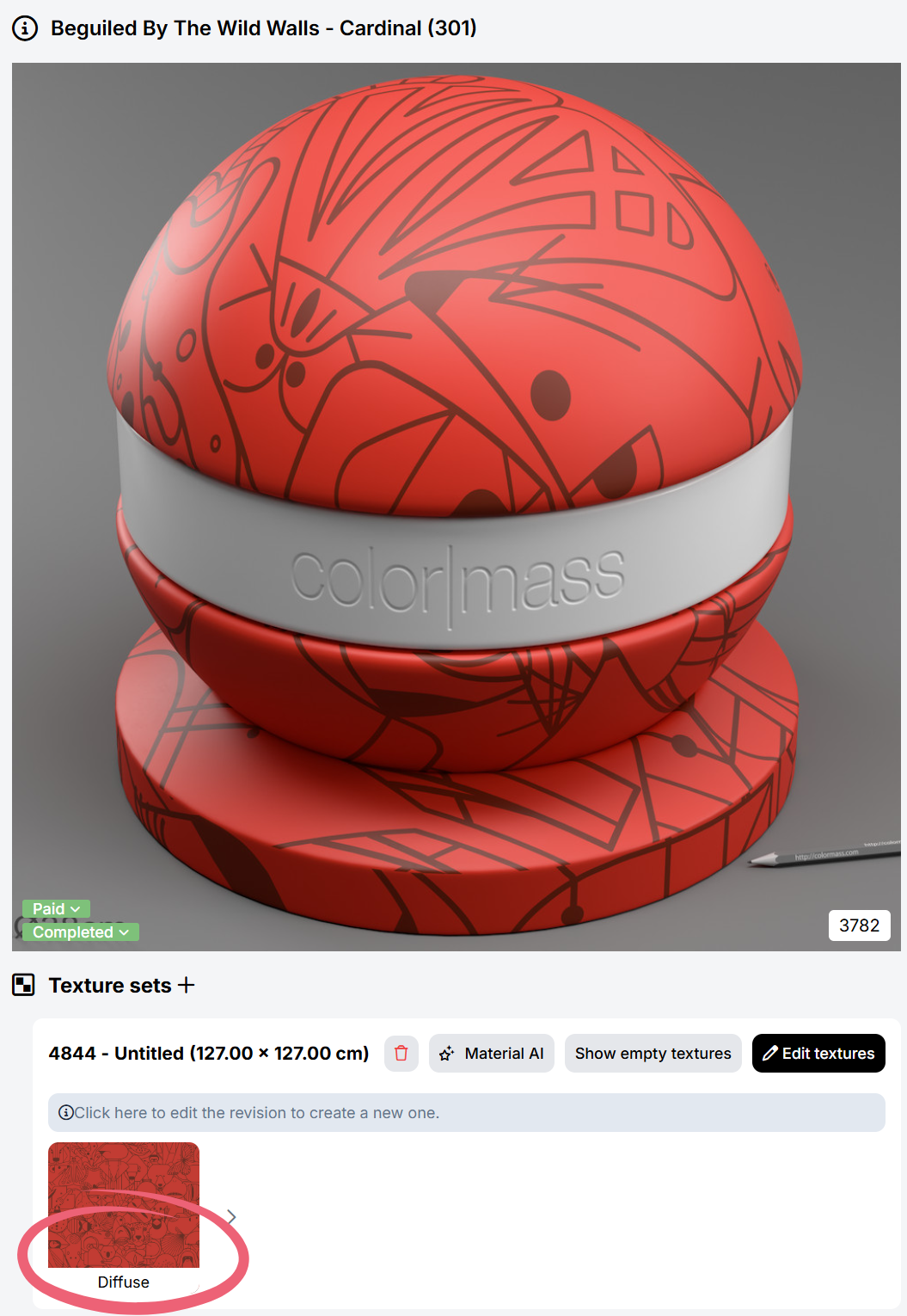
Navigate to the Materials tab and click on the material that you would like to change, and then click on the texture of the material:
Then in the operators add the *Rotate* operator to rotate:
{% hint style="info" %}
In case you only see a Tiling operator, then please click on Tiling operator first (without modifications and then apply the Rotate operator).
{% endhint %}
If you don't see a way to add an operator then please follow the [I Can't Add an Operator](/scanning-and-tiling/texture-editor/i-cant-add-an-operator.md) page apply your rotation after the copy and then update your material.
In case you are looking to edit the textures more, please look at the [Texture Editor](/scanning-and-tiling/texture-editor.md) section.
{% hint style="info" %}
Although materials can also be rotated directly in the material editor, we recommend performing rotations only in the texture editor. Some maps (such as normal maps) require additional adjustments when rotated, and rotating them solely in the material node editor can lead to incorrect visual results.
{% endhint %}
.png?alt=media&token=9fe52d70-4f44-425f-9c59-2f20d3cd3cb0)